
Multisite: See notes below if you plan to run a Network of WordPress (aka multisite) on your Mac.
New: Here's an alternative, take a look at WordPress on Pow (includes a "how-to add MySQL, PHP5.4.9 and Ruby 1.9.3")
Update: Mountain Lion and Mavericks
[shell light="true"]
$ sudo apachectl start
[/shell]
apachectl main commands are: start, stop and restart. You can learn more about apachectl by entering the following in Terminal
[shell light="true"]
$ man apachectl
[/shell]
apachectl is sufficient when you need to start, restart or stop the server while testing, but if you want the web server to start automatically after a reboot, you'll have to enable the launch daemon for the server:
[shell light="true"]
sudo defaults write /System/Library/LaunchDaemons/org.apache.httpd Disabled -bool false
[/shell]
Create /var/mysql/mysql.sock if it doesn't exist (or replace /var/mysql/mysql.sock with /tmp/mysql.sock further below)
[shell light="true"]
$ sudo mkdir /var/mysql
$ sudo ln -s /tmp/mysql.sock /var/mysql/mysql.sock
[/shell]
Also, If you followed the instructions below earlier and upgraded your Lion to Mountain Lion, you'll have to reenable PHP:
[shell light="true"]
$ sudo sh -c "grep php /etc/apache2/httpd.conf|grep LoadModule|cut -d'#' -f2 > /etc/apache2/other/php5-loadmodule.conf"
$ sudo cp -a /etc/php.ini.default /etc/php.ini
$ sudo sh -c "cat >> /etc/php.ini <<'EOF'
;;
;; User customizations below
;;
; Original - memory_limit = 128M
memory_limit = 196M
; Original - post_max_size = 8M
post_max_size = 200M
; Original - upload_max_filesize = 2M
upload_max_filesize = 100M
; Original - default_socket_timeout = 60
default_socket_timeout = 600
; Original - max_execution_time = 30
max_execution_time = 300
; Original - max_input_time = 60
max_input_time = 600
; Original - display_errors = Off
display_errors = on
; Original - display_startup_errors = Off
display_startup_errors = on
; Original - ;date.timezone =
date.timezone = 'America/New_York' // Change to your timezone: https://www.php.net/manual/en/timezones.php
EOF"
$ sudo sh -c "cat >> /etc/php.ini <<'EOF'
; Original - ;include_path = ".:/php/includes"
include_path = ".:/usr/lib/php/pear"
EOF"
$ sudo sed -i "" 's#/var/mysql/mysql.sock#/tmp/mysql.sock#g' /etc/php.ini
$ sudo apachectl restart
[/shell]
How I installed MAMP + WordPress
1 ) Installed Apache, MySQL and PHP on my Mac. I followed this excellent guide: OS X 10.7 Lion Development: Native MAMP with MySQL installer. Here's the /Users/<username>/Sites/httpd-vhosts.conf I made:
[xml]
#
# Use name-based virtual hosting.
#
NameVirtualHost *:80
#
# Set up permissions for VirtualHosts in ~/Sites
#
<Directory "/Users/<username>/Sites">
Options Indexes FollowSymLinks MultiViews
AllowOverride All
Order allow,deny
Allow from all
</Directory>
# For https://localhost in the OS X default location
<VirtualHost _default_:80>
ServerName localhost
DocumentRoot /Library/WebServer/Documents
</VirtualHost>
#
# VirtualHosts below
#
# wp.local
<VirtualHost *:80>
ServerName wp.local
CustomLog "/Users/<username>/Sites/logs/wp.local-access_log" combined
ErrorLog "/Users/<username>/Sites/logs/wp.local-error_log"
DocumentRoot "/Users/<username>/Sites/wordpress"
</VirtualHost>
[/xml]
2) Installed WordPress in /Users/<username>/Sites/wordpress
When I tried to install the first plugin, I got the dreaded FTP Connection Information required :/
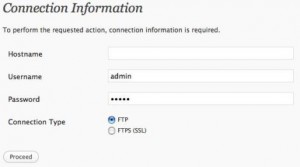
Luckily, Google to the rescue, I found this fix to allow WordPress automatic plugin installation/update:
A) Changed the owner and permissions for the entire WordPress installation, assuming you installed WordPress in /Users/<username>/Sites:
[shell]
$ cd /Users/<username>/Sites
$ sudo chown -R :_www wordpress
$ sudo chmod -R g+w wordpress
[/shell]
B) Added the following to /Users/<username>/Sites/wordpress/wp-config.php:
<br />
define('FS_METHOD', 'direct');<br />
How to create a WordPress multisite locally
1) Follow the instructions above, and create a separate database per multisite
Easiest is to create a path-based (that is use sub-directories) multisite. My multisite virtual host looks like this:
[xml]
<VirtualHost *:80>
ServerName mu.local
CustomLog "/Users/<username>/Sites/logs/mu.local-access_log" combined
ErrorLog "/Users/<username>/Sites/logs/mu.local-error_log"
DocumentRoot "/Users/<username>/Sites/mu.local"
</VirtualHost>
[/xml]
2) When WordPress is up and running, follow steps 2 - 6 in the Create a Network guide.
If you have any questions, please don't hesitate to ask below. I'll try to answer as soon as possible.